FastCast
Download

Windows screen recorder and streamer

Record, stream, or do both in one click.

Open FastCast, pick a display and mic, then record, stream, or do both with one click. Go live to YouTube, Twitch, Kick, or any RTMP service.

v0.6.1 · Portable ZIP · Free · No account

Capture
Monitor · Window · Webcam
Audio
Desktop + microphone
Output
MP4 / H.264
Stream
YouTube · Twitch · Kick · RTMP/RTMPS
System
Windows 10 / 11 · 64-bit
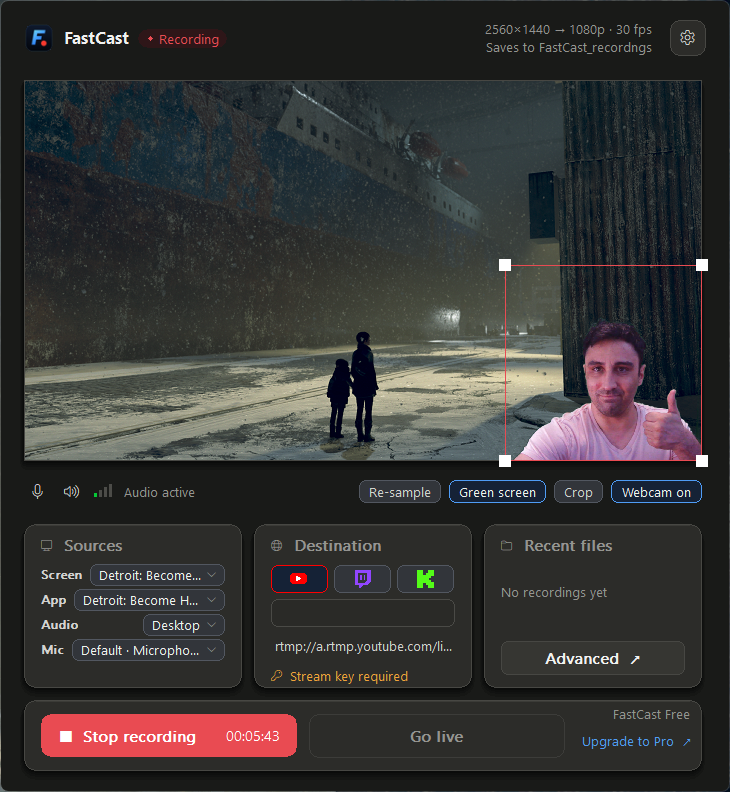
The FastCast window on Windows: a live preview of the screen being captured, with Sources, Destination, and Recent files below it, and a Start recording button
FastCast at launch. Nothing to set up before this screen.

Same recording. Two setup paths.

Record your screen, your mic, and your webcam, then keep the file. Here is what you click to get there.

CH A

OBS Studio

9 steps
  1. Create a scene
  2. Add a Display Capture source
  3. Add a Video Capture Device for the webcam
  4. Add an Audio Input Capture for the mic
  5. Resize and stack the sources on the canvas
  6. Open Settings, then Output, and choose an encoder and bitrate
  7. Set the recording path and file format
  8. Close settings and check your levels
  9. Press Start Recording

Keep OBS for the rest. It is a full broadcast studio and it earns those steps: scene switching, plugins, filters, multistreaming, and productions with a director. FastCast is for the recording you want to start in the next ten seconds.

Everything you need to record

Capture your screen, audio, and webcam without digging through menus.

  • Screen or single window

    Record a whole monitor or just one running app, so the rest of your desktop never makes it into the file.

    Monitor · Window
  • Mic and desktop audio

    A live level meter sits between the two mute buttons, and you can mute either one with a keyboard shortcut that works from anywhere.

    Ctrl+Alt+F10 / F11
  • Webcam on top

    Turn the camera on and switch between screen, camera, and combined layouts while you are recording.

    4 layouts
  • A finished MP4

    Recordings are saved as H.264 MP4 files, ready to upload or edit as soon as recording ends.

    MP4 / H.264
  • The same setup, live

    Use the same setup to stream to YouTube, Twitch, Kick, or another streaming service. There is no second scene to build for going live.

    RTMP / RTMPS
  • Start and stop from anywhere

    Recording starts and stops without switching windows, so the first and last seconds of the take are not you hunting for the button.

    Ctrl+Alt+F9

Press F2 for advanced controls

FastCast starts compact. Press F2 to put every capture and streaming control on one screen. Press it again to go back to the simple view.

  • Encoder, resolution, frame rate, and scaling
  • YouTube, Twitch, Kick, or a custom RTMP/RTMPS URL
  • Layout shortcuts, app updates, and Pro activation

Simple by default. Detailed on demand.

FastCast expanded view with capture, audio, streaming, encoder, output, and layout controls laid out on one screen
Expanded view · F2

Control FastCast without leaving your app

Start or stop recording, mute audio, and switch layouts with shortcuts that work while FastCast is behind your game, your call, or your editor.

Anywhere

  • CtrlAltF9Start or stop recording
  • CtrlAltF10Mute or unmute the microphone
  • CtrlAltF11Mute or unmute desktop audio
  • CtrlAlt1Screen only
  • CtrlAlt2Screen with camera
  • CtrlAlt3Camera with screen
  • CtrlAlt4Camera only

In the FastCast window

  • F2Switch simple or detailed view
  • HholdShow every shortcut on screen

If a game already uses the number keys, you can move the four layout shortcuts to Ctrl+Shift+1 through 4 or turn them off. Start, stop, and the two mutes stay where they are.

Nothing leaves the machine unless you send it

  • No account requiredDownload FastCast and start recording without creating an account or signing in.
  • No automatic data collectionFastCast does not collect usage data, upload crash reports, or check for updates unless you ask it to.
  • Stream keys are not savedFastCast uses your stream key only while the app is open and does not save it.

Free to record. Pay once for 4K, 60 fps, and more control.

FastCast Free

$0

1080p recording and streaming at 30 fps. Stays free with no subscription.

  • Monitor or window capture
  • Desktop audio and microphone
  • Webcam and live layouts
  • Streaming to YouTube, Twitch, or Kick
Download Free

FastCast Pro One-time

4K · 60 fps

For recordings people will scrub through frame by frame.

  • 1440p and 4K recording
  • 60 fps capture where your hardware supports it
  • Fine-tune recording quality and file size
  • No subscription and no account
Get FastCast Pro

FastCast is unsigned during the Open Beta, so Windows SmartScreen may show an Unknown Publisher warning the first time you run it.

Questions people ask first

What is FastCast?

FastCast is a native Windows screen recorder and live streaming app for local MP4 recording, monitor or window capture, desktop audio, microphone capture, webcam overlay, and RTMP/RTMPS streaming.

Is FastCast an OBS alternative?

FastCast is a simpler OBS alternative for focused single-scene recording and streaming workflows. OBS is still better for advanced scenes, filters, plugins, multistreaming, or complex broadcast production.

Does FastCast save stream keys?

No. Stream keys are not saved to disk.

Is FastCast free?

FastCast Free covers 1080p recording and streaming at 30 fps, and those capabilities will stay free, with no subscription and no account. A one-time FastCast Pro license unlocks 1440p and 4K recording, 60 fps capture, and advanced encoder controls.

Is FastCast signed?

FastCast is currently unsigned during Open Beta, so Windows SmartScreen may show an Unknown Publisher warning.

Press record in ten seconds

FastCast v0.6.1 for Windows 10 and 11, 64-bit. Portable ZIP, no installer.

FastCast v0.6.1Download