HDR & Color
How to Fix Washed-Out HDR Screen Recordings and Screenshots on Windows
If a Windows HDR screen recording or screenshot looks too bright, harsh, or washed out, the capture probably lost the color conversion between the HDR desktop and an ordinary SDR file. FastCast avoids that mismatch by capturing the HDR display as FP16 scRGB and tone-mapping it to correctly exposed SDR output. HDR recording is available now; the matching screenshot workflow is coming in the next release.
Published · By Calvin Sturm
Why HDR screenshots and recordings look washed out
HDR changes what a pixel value means. An HDR desktop can represent highlights far above ordinary SDR white, while a normal screenshot or H.264 recording is usually expected to contain display-ready SDR values. Copy those HDR values into an SDR image or video without a color conversion and the viewer receives numbers in the wrong language.
The most common symptoms are easy to recognize:
- white clouds, windows, lamps, or game effects lose all visible detail;
- midtones look brighter than the screen the user was watching;
- contrast feels unusually hard, with bright areas pushed toward white;
- colors look oversaturated, faded, or simply different from the HDR display; and
- the result changes again when opened in another player, editor, or browser.
This is a color-management problem, not a bitrate problem. Raising the recording bitrate cannot restore highlight detail that was clipped during capture.
What Windows HDR actually sends to capture software
With Windows HDR enabled, Windows Graphics Capture can provide the selected monitor or window as a 16-bit floating-point scRGB texture. In FastCast this is the R16G16B16A16Float path, commonly shortened to FP16 scRGB. It has enough range to retain bright HDR highlights before they are converted for SDR output.
Windows also exposes the selected display's SDR white level. That setting describes how bright ordinary SDR white should appear inside the HDR desktop. A capture tool needs that value to map the desktop into a normal image consistently instead of assuming that every display uses the same reference brightness.
A basic 8-bit desktop grab can discard this context too early. Once the highlights have already clipped into an ordinary BGRA image, a later filter cannot reconstruct the missing detail.
Why brightness, gamma, and contrast get blown out
Three mistakes can produce a capture that looks much harsher than the source:
- Clipping before tone mapping. HDR highlights are squeezed directly into an SDR range, so many different bright values become the same white pixel.
- Treating linear scRGB as finished sRGB. Linear working values need a transfer conversion before an ordinary image viewer can display them correctly. A mismatch changes apparent gamma and midtone brightness.
- Ignoring SDR white. The Windows SDR content brightness setting affects the relationship between SDR white and the HDR desktop. Assuming a fixed value can shift the entire exposure.
The fix is to preserve the floating-point HDR frame long enough to apply a deliberate HDR-to-SDR conversion. FastCast normalizes the frame using the target display's current SDR white level, applies a smooth shoulder to bright highlights, and converts the linear scRGB result to sRGB before the existing SDR recording pipeline.
HDR preservation and HDR-to-SDR tone mapping are different
A true HDR recording preserves the source's HDR transfer function, color primaries, bit depth, range, and metadata through capture, encoding, muxing, and playback. An MP4 container can hold HDR video, but the file extension alone says nothing about whether those properties survived.
FastCast takes the compatibility-focused route today. It captures the FP16 scRGB desktop before clipping, tone-maps that frame to SDR BGRA8, and then sends it through the normal H.264/NV12 encoder. The resulting MP4 is SDR. It is designed to look correctly exposed on normal displays, browsers, editors, and sharing sites, not to switch an HDR television into HDR mode.
How to record an HDR screen correctly with FastCast
- In Windows Settings, open System > Display > HDR, select the monitor you plan to record, and enable HDR before starting the capture session.
- Open FastCast and choose that monitor or an application window displayed on it. Keep the normal Windows Graphics Capture path enabled; the forced DXGI fallback is limited to 8-bit BGRA and cannot preserve the FP16 frame for tone mapping.
- Check the live source preview. It uses the same HDR-to-SDR color contract as recording, so clipped whites or a dramatic exposure mismatch should be investigated before a long take.
- Make a short local recording and review the MP4 on an SDR display or in an ordinary SDR-aware player. Look specifically at bright clouds, white UI, neon, fire, and shadow detail.
- If you change Windows HDR or SDR content brightness, stop the recording first and begin a new capture session afterward so FastCast reads the new display state.
FastCast reports HDR recording as an informational success note, including the SDR white level it used. If FP16 capture is unavailable, it warns that colors may be clipped instead of silently presenting the fallback as HDR-safe.
Coming in the next release: HDR-aware screenshots
FastCast's HDR-aware screenshot implementation captures the currently selected source. On an HDR target it opens a Windows Graphics Capture session in FP16 scRGB, reads the display's SDR white level, applies the same GPU tone mapper used for recording, and then writes a normal 24-bit PNG. It also places the SDR image on the Windows clipboard.
- Select the HDR monitor or window in FastCast.
- Confirm Windows HDR is enabled for that target before taking the screenshot.
- In builds that include the screenshot feature, press
Ctrl+Alt+F12to save the selected source as a PNG and copy it to the clipboard. - Open the PNG on an SDR display and compare bright and dark detail with the source.
This screenshot feature is coming in the next FastCast release. It is implemented on the current development branch but is not part of the public v0.9.2 installer linked from this site. HDR screen recording is the workflow available to download today.
What a useful before-and-after comparison should show
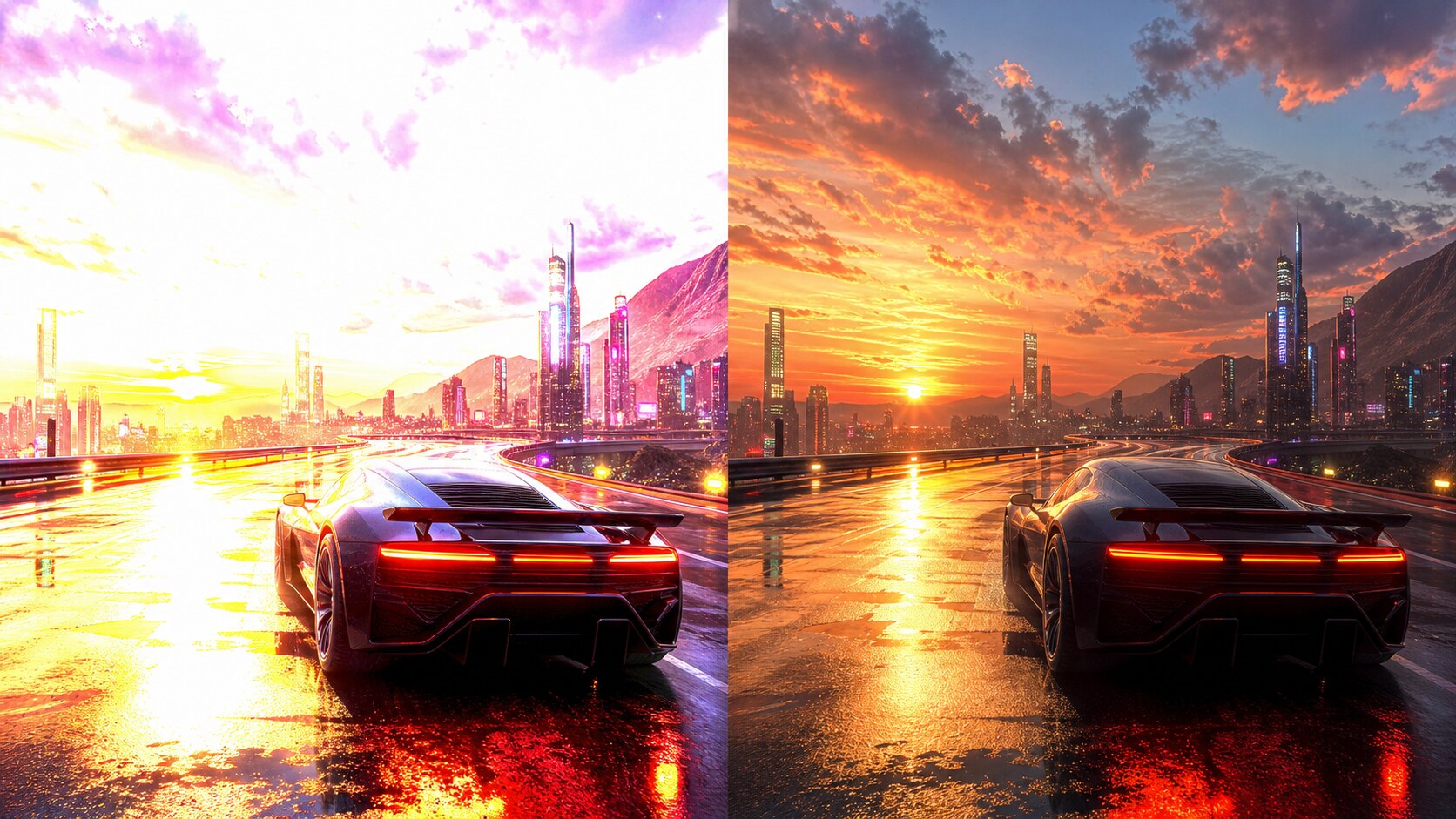
A meaningful comparison uses the same HDR frame, crop, and display settings on both sides. The broken capture should reveal where highlights clip, midtones lift, or colors shift. The corrected version should recover visible structure without making the entire image dark.
- Sky and clouds: texture remains visible around the brightest area.
- White interface elements: white stays white without glowing into nearby pixels.
- Neon and effects: saturated color retains shape instead of becoming a flat patch.
- Shadows: dark detail remains readable without lifting blacks into gray.
- Skin and neutral surfaces: color stays believable rather than overly warm or saturated.
The hero above is an illustration of those symptoms, not a pixel-for-pixel FastCast test. Product validation should use matched captures from the same real HDR machine.
Windows HDR troubleshooting
- The MP4 is still too bright. Verify the selected target is using the Windows Graphics Capture path and check FastCast's result note for FP16 HDR capture. A forced DXGI fallback cannot perform the same HDR-safe input capture.
- The result changed after adjusting HDR settings. Stop and start a new session. Do not toggle HDR in the middle of a recording.
- Only one monitor looks wrong. HDR state and SDR white level are display-specific. Confirm the monitor selected in Windows Settings matches the capture target in FastCast.
- The file differs between players. Compare it in another color-managed player. Player-side enhancements, automatic brightness, and GPU video settings can change the appearance of an otherwise valid SDR file.
- The capture is black. Protected video, secure desktops, and some game or anti-cheat configurations can block screen capture regardless of HDR handling. See the black-screen troubleshooting guide.
HDR recording and screenshot FAQ
Can an MP4 contain HDR?
Yes. MP4 is a container and can hold HDR video when the codec, bit depth, transfer characteristics, color primaries, and metadata support it. FastCast currently outputs a tone-mapped SDR H.264 MP4, not a preserved HDR MP4.
Does turning HDR off fix washed-out recordings?
It can avoid the HDR-to-SDR mismatch because Windows renders the desktop as SDR, but it also means you are no longer viewing or capturing the HDR presentation. Correct tone mapping lets you keep HDR enabled while producing a compatible SDR recording.
Why does Snipping Tool look different?
Windows versions and capture tools can use different capture, tone-mapping, and image paths. The app used to view the result can also change its appearance. Compare the same frame in the same viewer before deciding which stage caused the difference.
Why does an HDR screenshot look wrong on an SDR display?
If HDR values are saved without compatible metadata or without tone mapping, an SDR viewer may interpret them as ordinary SDR values. A tone-mapped PNG converts the scene into the normal SDR range first, making it far more portable.
Does FastCast record HDR games?
FastCast can capture an HDR-enabled monitor or compatible game window through Windows Graphics Capture and tone-map it to an SDR recording. Protected content, capture-blocking anti-cheat systems, unsupported swap-chain behavior, or a forced DXGI fallback can still limit the result. Test a short clip before recording a full session.
Capture an HDR display without blown-out color
Use FastCast to record an HDR-enabled monitor or window as a correctly exposed SDR MP4. The HDR-aware PNG screenshot command is available in development builds and will need a release update before it is part of the public installer.